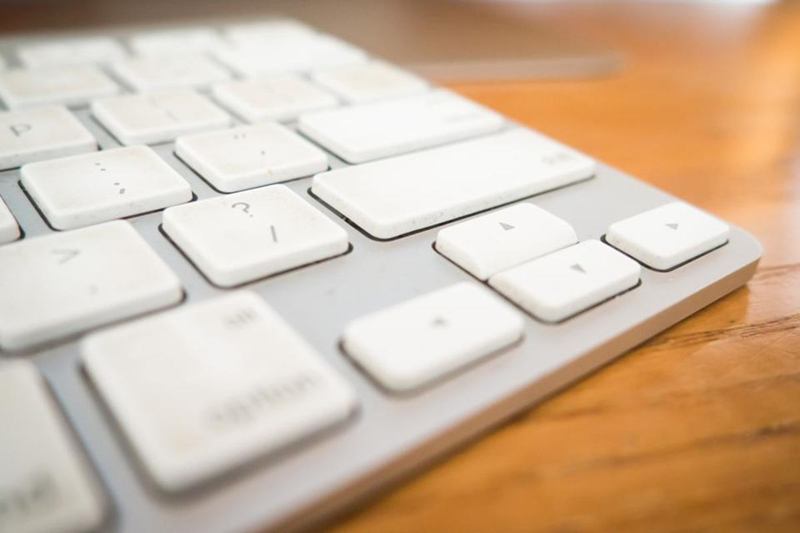
Coffee at the desk, a sandwich during a video call, hands that have just touched the lift button: the keyboard is one of the most frequently touched objects in any office – and one of the least cleaned. If you want to clean your keyboard, mouse and screen properly, a quick wipe with any spray from the cupboard isn't the answer. Displays and electronics are sensitive, and the wrong product can do real damage.
Here are five practical tips for single workstations, home offices and shared desks.
Why desk equipment needs regular cleaning
Keyboards, mice, headsets and phones are touched hundreds of times a day. Skin oils, dust and food residue collect on them, and on shared desks several people use the same equipment. Under Swiss labour law, employers must keep workplaces and rooms clean – the SECO commentary on workplace cleanliness explains the general requirements.
Daily equipment cleaning, however, is usually a mix of professional office cleaning and a few habits of the people using the desk. Here's how to do your part.
1. Switch off and prepare
Before you touch anything with a cloth:
- Save your work and shut down the computer, or at least lock it.
- Unplug a wired keyboard and mouse, or switch off wireless ones and remove the batteries if possible.
- For laptops: shut down completely and disconnect the charger.
- Check the manufacturer's instructions – many list which cleaning agents are allowed.
This protects the device and prevents accidental keystrokes that could delete or send something.
2. Remove crumbs and dust
Hold the keyboard upside down over a bin or a sheet of paper and tap it gently. A surprising amount will fall out.
- Soft brush: A clean paintbrush or make-up brush reaches between keys.
- Compressed air: Use short bursts at an angle, holding the can upright. Do this in a well-ventilated space.
- Vacuum cleaner: Only with a soft brush attachment and on low power, so you don't pull off keycaps.
- Laptop keyboards: Tilt the laptop to about a 75° angle and blow air in short strokes from side to side.
3. How to clean a keyboard and mouse hygienically
Once the loose dirt is gone, wipe the surfaces.
- Lightly moisten a microfibre cloth with water and a drop of washing-up liquid – it should be damp, not wet.
- Wipe the keys, the spaces between them and the frame.
- For greasy residue, many manufacturers allow wipes with isopropyl alcohol (often 70 %) on keys and mouse – check your device's instructions first.
- Clean the mouse body, buttons, scroll wheel and the underside including the sensor area and glide pads.
- Let everything dry completely before switching it back on.
Headsets, desk phones and pens can be cleaned the same way – remove fabric ear cushions first if they are washable.
4. Clean the screen without scratches or streaks
Monitors and laptop displays often have anti-glare coatings that are easily damaged.
- Start dry: Wipe gently with a clean, dry microfibre cloth to remove dust.
- Then slightly damp: For fingerprints, use a microfibre cloth lightly dampened with water – distilled water avoids limescale spots from hard Swiss tap water.
- No pressure: Press lightly; pressing hard can damage the pixels.
- Avoid: Glass cleaner, ammonia, kitchen paper, paper towels and abrasive sponges. They can dull the coating or leave scratches.
- Never spray directly onto the screen – liquid can run into the frame.
| Device | Best method | Avoid |
|---|---|---|
| Keyboard | Brush, compressed air, slightly damp cloth | Pouring or spraying liquid |
| Mouse | Damp cloth, alcohol wipe if permitted | Soaking, harsh solvents |
| Monitor | Dry, then slightly damp microfibre | Glass cleaner, kitchen paper |
| Laptop display | Dry microfibre, very light moisture | Pressure, ammonia |
| Headset | Damp cloth, washable cushions separately | Soaking the electronics |
5. Hygiene rules for shared and hot desks
In offices with flexible desks, a simple routine makes the difference:
Clear desks are also essential for professional cleaners: we can only wipe what is not covered by papers and cables. Our office cleaning checklist shows which tasks are typically done daily, weekly and monthly.
Common mistakes when cleaning a keyboard
- Cleaning while the computer is on: Random keystrokes can send an unfinished email.
- Using too much liquid: Moisture under the keys can damage the electronics.
- Glass cleaner on monitors: Can destroy the anti-glare coating.
- Kitchen paper on screens: Leaves fine scratches and fibres.
- Pulling off keycaps without knowing how: On laptops especially, they break easily.
- Disinfectant sprays applied directly: Liquid runs into gaps and can damage the device.
In winter, shared surfaces deserve even more attention – see our tips on office hygiene in winter.
Frequently asked questions
Can I clean my keyboard with alcohol?
Many manufacturers allow isopropyl alcohol wipes on keys and casings, but check the instructions for your device first. Use a cloth that is only slightly damp and never pour alcohol onto the keyboard.
How often should you clean your keyboard?
Removing crumbs and dust once a week and wiping the keys regularly is a practical rhythm. On shared desks, a wipe before or after each use makes sense.
What is the best way to clean a computer screen?
Switch it off, wipe with a dry microfibre cloth and then, if needed, with one lightly dampened with water. Avoid glass cleaner and kitchen paper.
What should I do if I spill coffee on my keyboard?
Disconnect or shut down the device immediately, turn the keyboard upside down to let the liquid drain and let it dry completely before using it again. For laptops, contact your IT department or a repair service.
Thanks for your feedback! Feel free to share the guide.
Thanks! What was missing? Drop us a line – we will improve the guide. WhatsApp